
John M. Astell ♦ Portfolio
Web Sites & Scripting
Web Sites
I design and create web sites using HTML5, HTML4, CSS3, CSS2, JavaScript, and jQuery. I recently designed and implemented the following sites:
- This site right here!
Look around. I created everything from scratch, using Aptana Studio and EditPlus (HTML, CSS, and JavaScript editing), GIMP (image editing), FileZilla (file uploading to web host), and other tools. The main site pages use (and validate as) HTML5, while some JavaScript demo pages use (and validate as) HTML4. - Notes:
- CSS. This site uses CSS to style the content. This page in particular loads a base stylesheet, base_styles.css, that's used on all pages of the site, plus a second sheet, demo_styles.css, for the various demos on this page. For more detail check them out in the page's HTML source.
- This page also uses CSS sprites to handle the logos at the upper left corners of the page. See how this site does CSS sprites.
- The rounded corners of the highlight on the navigation menu (on the left of the page) are done by CSS3. (If you see square corner instead, your browser doesn't support this.) You may also see a gradient effect in the header at the top of this page: the background color fades from the bright gold of the logo on the left to a paler gold on the right. (If you see an abrupt color shift instead, you're using a browser that doesn't support this.)
- HTML5. This site and page uses HTML5 for various elements. See the HTML5 section below for more info.
- JavaScript/jQuery. This site and page uses JavaScript and jQuery. Check out the page's HTML source for JavaScript/jQuery, and see the jQuery section below for a set of demos.
- Emilie Astell Fine Art
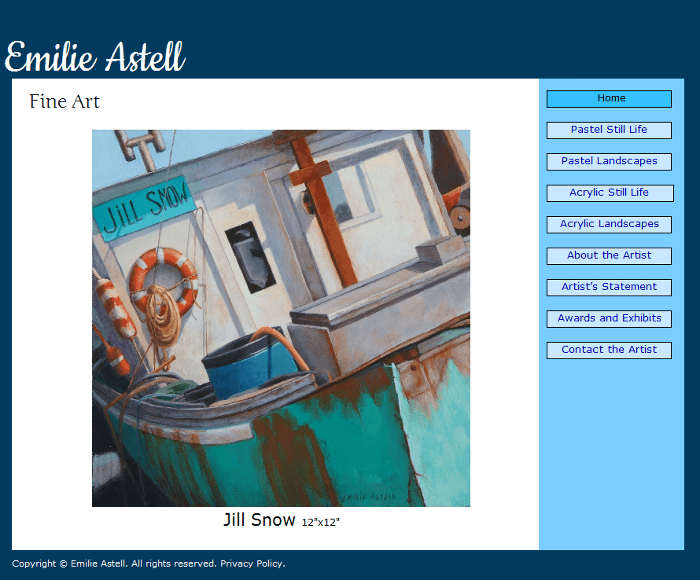
I hand-coded this entire site, which displays an arist's work. JavaScript is used for the slide show feature. You can view the key source files (as text) for the site right here:- HTML source. The web site is HTML5 compliant. It is organized in sections that are displayed or hidden as needed via CSS and JavaScript. The meta tag with
http-equiv="X-UA-Compatible" content="IE=edge,chrome=1"ensures that versions of Internet Explorer containing multiple rendering engines use the latest engine, which is the most HTML5-friendly, to render the site. Also, if the Google Chrome Frame plugin is installed on the IE browser, this plugin is used instead of IE. The plugin is fast and has excellent HTML5 support. - CSS style sheet. See the comments in the file for CSS usage. Note that a few HTML tags also use some
"style="attributes rather than using the CSS file. This was done for maintainability and convenience, as it allows the website coder to see and modify key positioning elements directly in the HTML. - JavaScript and jQuery. The JavaScript file is extensively commented to show what is going on. The button status for the navigation buttons is controlled by the script. The thumbnail images for the art are downloaded after the initial page is loaded, as this significantly speeds up the initial load. The slide show feature is controlled by the script. jQuery is also used for some initialization purposes (using
$(document).ready()) and to manage the fade transitions between images in the slide show.
- HTML source. The web site is HTML5 compliant. It is organized in sections that are displayed or hidden as needed via CSS and JavaScript. The meta tag with
- Birdopolis. I designed and coded the layout, styling, and many of the custom scripts for the Birdopolis Facebook game. The site uses CSS positioning, jQuery, and other scripts, including SWFObject 2 to embed the game's Flash (.swf) file in a reliable, cross-browser, web-standards way. The HTML source for the page can be a bit difficult to get from the browser, since it is in an iframe on a Facebook page, so you can click this link to view the source as a text file.
- Rhythm Zone
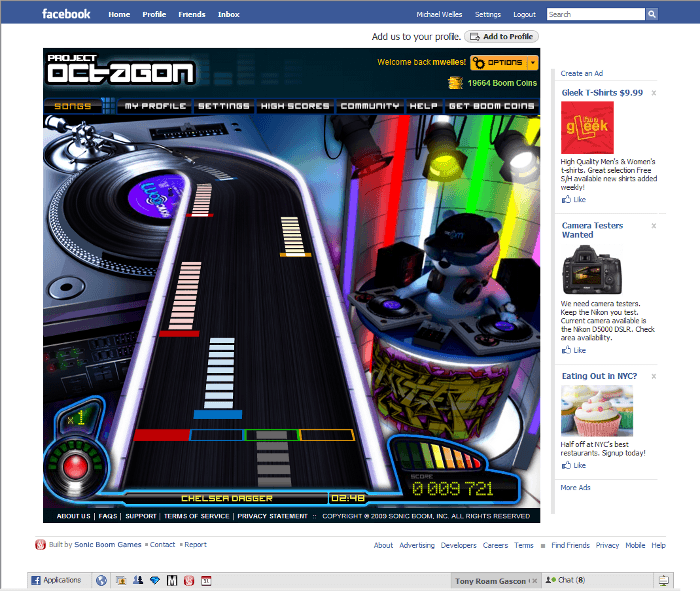
Click to see full size image.
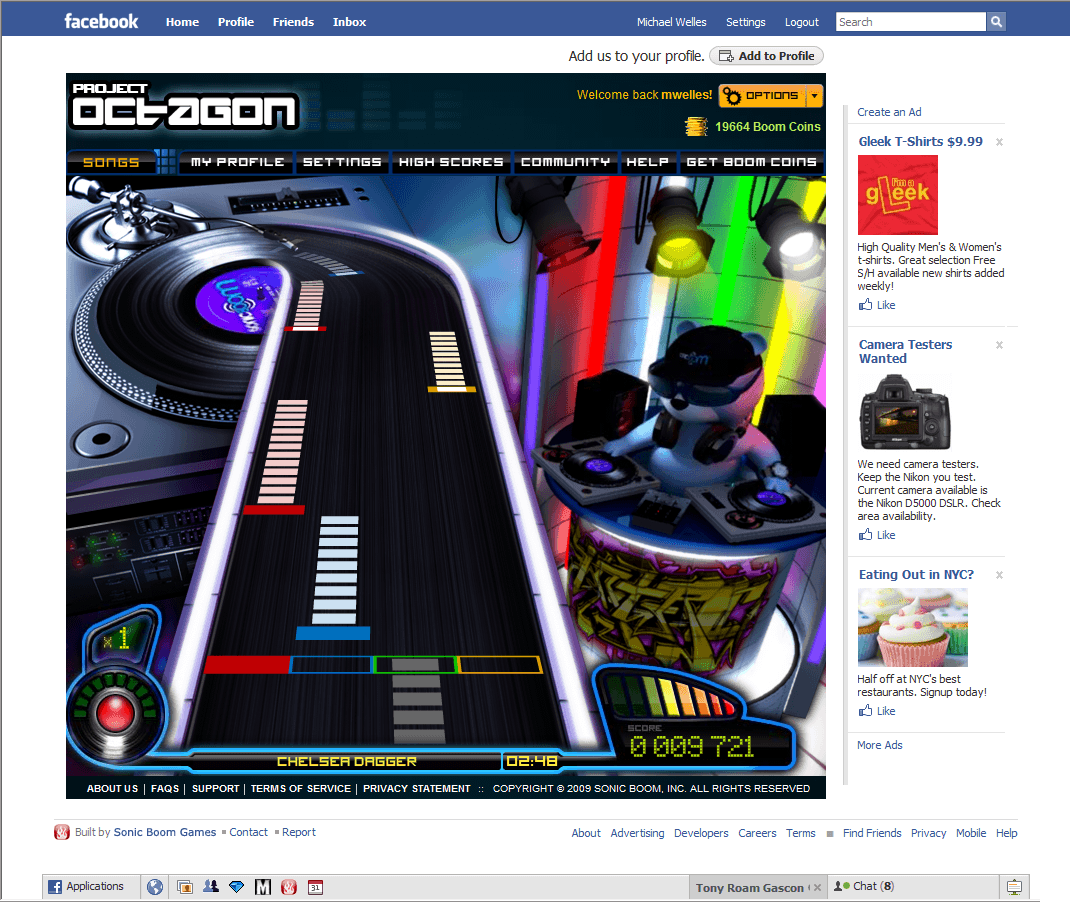
Rhythm Zone is a music game that is a Steam download. It was also intended for the web, and I designed the beta test version, which ran for a limited time, and then a Facebook version. The Facebook version was postponed because of licensing issues and later dropped in favor of the Steam version, but click the above image to see a full-size mockup of the home screen for Facebook. My website design flowcharts are also available; see Rhythm Zone Beta and Rhythm Zone for Facebook. - THQ Collective
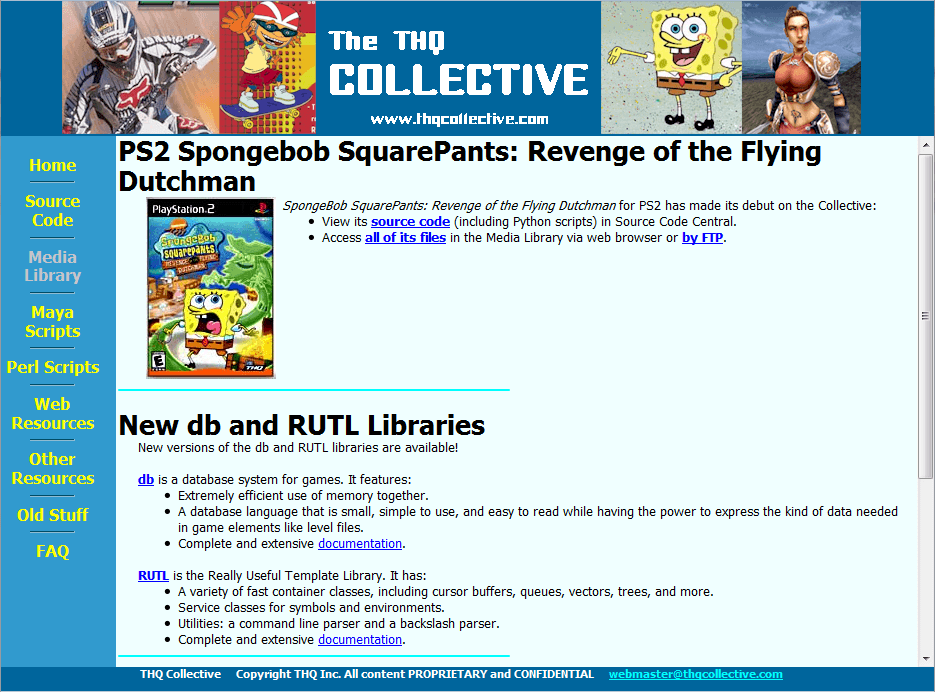
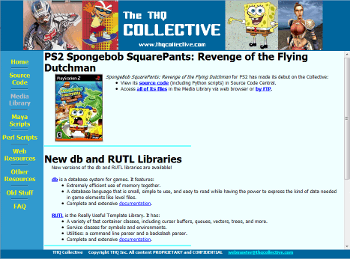 While I was at GameFx and Helixe, studios of THQ, Inc., I ran the THQ Collective. This was a source code resource for all in-house developers at THQ and its studios. Each source code project had its identifiers in hyperlinks, so that just by clicking a link you could view every use of a specific identifier in the project and go to each code file that used it. The Collective ran on a Linux box using the Apache server, which I administered.
 - RUTL, the Really Useful Template Library. The GameFx studio of THQ used C++ to code their games. To maximize performance, they created RUTL instead of using the C++ Standard Template Library, as RUTL was faster and simpler. RUTL also contained game-useful classes that STL did not. I documented the RUTL library as a web site, see RUTL.
- GA Networking Code (code documentation). Genetic Anomalies (GA) was a pioneer of online virtual goods and games. They wrote extensive networking to support their operations, and I documented it as a web site. See GA Networking Code.
- Helixe Database Library (code documentation). Helixe created an extremely memory-efficient database system for use in their games, and I documented it as a web site. See Helixe Database Library.
- kaNET, the Katerra Developers' Intranet
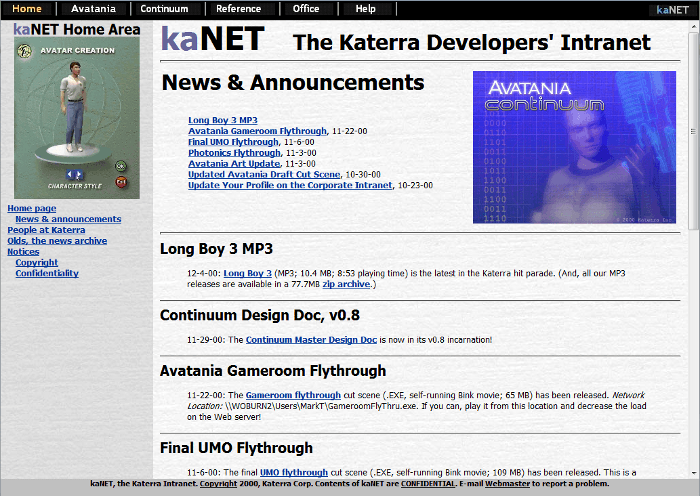
Click to see full size image.
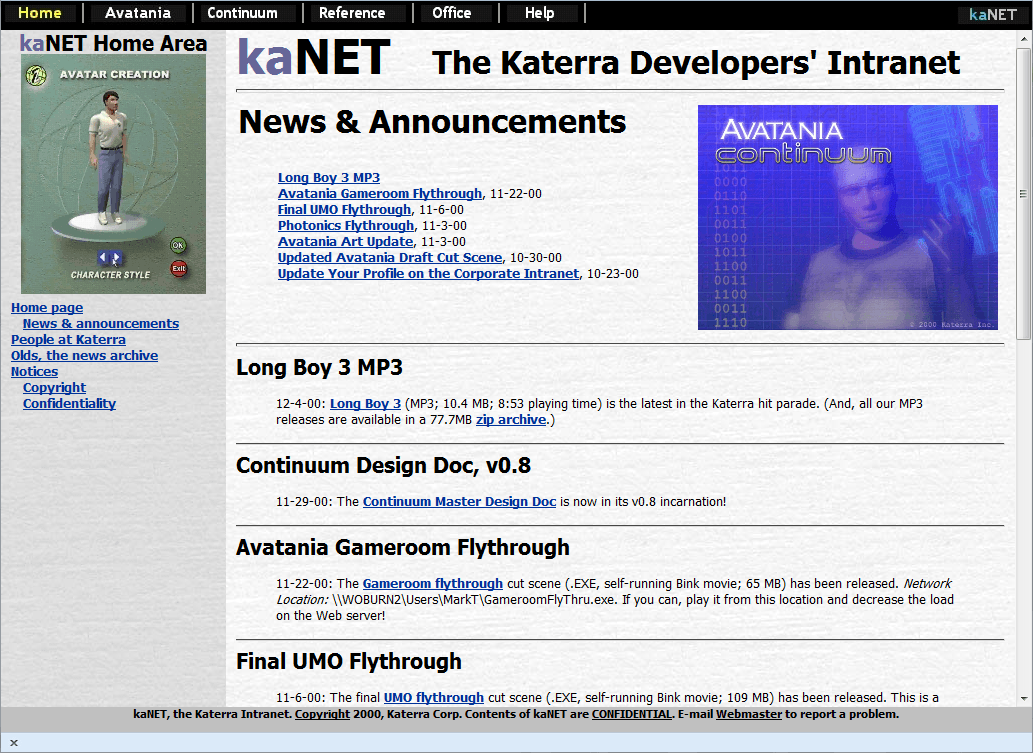
Katerra was an Internet startup working on massively multiplayer games and virtual worlds, with offices in Woburn, MA, Springfield, MA, and Oakhurst, CA. I designed, created, and maintained the web-based kaNET, the Katerra Developers' Intranet.
HTML5
HTML5 is great! It's been taking a long time to get here, but it will be very powerful once it (and its related technologies) are finalized and working in most users' browsers. Many modern browsers already support a number of the draft HTML5 features. Rather than talking about it further, click this link to see my very own HTML5 demos!
JavaScript
- JavaScript for This Website. Several pages in this website make extensive use of JavaScript (and jQuery):
- JavaScript for the HTML5 Page. The HTML5 page demonstrates HTML5 and related web technologies, and JavaScript/jQuery is used extensively to control the demos. Click the heading or this link to see a text file of the JavaScript for this page.
- JavaScript for This Page. This page covers web site development and scripting, and JavaScript/jQuery is used for various features. Click the heading or this link to see a text file of the JavaScript for this page.
- JavaScript for the CSS Demos Page. The CSS demos page demonstrates CSS sprites and CSS3 features, and JavaScript/jQuery is used extensively to control the CSS3 demos. Click the heading or this link to see a text file of the JavaScript for this page.
- eastellart.com JavaScript. As covered in the Web Sites section above, this JavaScript file is extensively commented to show what is going on. The button status for the navigation buttons is controlled by the script. The thumbnail images for the art are downloaded after the initial page is loaded, as this significantly speeds up the initial load. The slide show feature is controlled by the script. jQuery is also used for some initialization purposes (using
$(document).ready()) and to manage the fade transitions between images in the slide show. - Sherlock Holmes Prototype. Sherlock Holmes was a prototype for a mobile phone game, for mobile content developer Zingy. The prototype used HTML/CSS/JavaScript to simulate a complete section of the game as it would appear on a sample phone. The manual covers the technical design and JavaScript usage of the prototype. See the manual, Sherlock Holmes Prototype.
- JavaScript Demos. I've used JavaScript extensively to provide advanced features for web sites, intranets, and offline web pages. I've occasionally repurposed the code as JavaScript demos for reference purposes. In the pages you obtain from these links, the JavaScript code is in the HTML file rather than in a separate file, so that all you need to do to examine it is to look at the HTML source.
- Image Swapping
Swaps images when you mouse over the menu links. - More Image Swapping and Effects
We're not talking chicken! Well, maybe we are. - Pseudo Controls for Animated GIFs
JavaScript image swapping is used to mimic stop and play controls for animated GIFs. - URLing
Displays variouswindow.locationproperties (for URL). Navigates using JavaScript to absolute URL rather than relative URL. - Listing the Properties of an Object
Lists the properties of an object. - Dynamically Inserting Content in a Page
This repurposes the above demo, Listing the Properties of an Object, to focus attention on how the properties list is dynamically inserted into the page. - Function Parameter Counter
Returns both the number of parameters passed to a function and also the data type of each parameter. - Cookie Cutter
Creates, stores, and uses a cookie. - Browser Information Detector
Displays information about browser and screen.
- Image Swapping
jQuery
jQuery is a free-to-use JavaScript library that can greatly help the creation of JavaScript scripts for browsers. It supports the "big 5" modern browsers in widespread use (Chrome, Firefox, Internet Explorer, Opera, and Safari), is fast, and is fairly compact for good download speeds. It is good for working with the DOM of web pages, for handling events, for animation, and for working with AJAX. If that's not enough, jQuery has scads of useful plugins, which provide tools to do a number of tasks. Need to parse the URL of a web page? Just use jQuery URL Parser!
jQuery is written in JavaScript, so jQuery and your own JavaScript code can be mixed together in a script. Anything you can do in jQuery you can code for yourself in JavaScript. But, using jQuery gives you functionality that's already coded, tested, and known to work across all major modern browsers. However, jQuery doesn't have to be used for everything, just because you're using it for something. There is some overhead involved in processing jQuery calls, so for simple things it may make more sense to code it in JavaScript. See this article on jQuery and Performance. You also might not want to include the jQuery library on pages intended for mobile devices, but in this case you could use jQuery Mobile instead.
jQuery in This Website
Several pages in this website make extensive use of jQuery:
- jQuery for the HTML5 Page. The HTML5 page demonstrates HTML5 and related web technologies, and JavaScript/jQuery is used extensively to control the demos.
- jQuery for This Page. This page covers web site development and scripting, and JavaScript/jQuery is used for various features.
- jQuery for the CSS Demos Page. The CSS demos page demonstrates CSS sprites and CSS3 features, and JavaScript/jQuery is used extensively to control the CSS3 demos.
jQuery Demos
The jQuery code used in these demos is in this page's HTML file rather than in a separate file, so that all you need to do to examine it is to look at the HTML source. The JavaScript/jQuery code is written for ease of readability and is not minified.
$(document).ready()
jQuery is good for working with the DOM of a web page. However, the DOM must be built before jQuery can read or modify it. Similarly, depending upon how the page is structured, a non-jQuery DOM-traversing script may execute before the DOM is fully built and may thus not work as intended.$(document).ready()is the solution in both cases to ensure that DOM-traversing code does execute after the DOM is built. Example:
    $(document).ready(function() {

          LoadThumbnails();

});- This code is used for a web page with many image thumbnails, none of which are visible when the page first loads. If they were included in the initial page download, the page would take much longer to load. Instead, the core content of the page becomes available for user interaction when the page is downloaded, and
$(document).ready()is used to fetch the thumbnails after the page is ready. To see this in action, go to eastellart.com and click on one of the art category links as soon as the page loads. You should see that at least some of the thumbnails will still be downloading. (If you've been to the site before, you should clear your browser's cache before loading the page again, as otherwise the thumbnails will be rapidly loaded from the cache.) - This page also uses
$(document).ready()to set up aspects of the jQuery demos; check the page's source for details. - Dynamic HTML
The following box starts empty. Use the Create button to fill the box with HTML content using jQuery's.html()method, and use the Clear button (when it appears) to clear the box using the.empty()method. Dynamic HTML is tremendously useful, and jQuery makes it easy!
- jQuery has many more methods for manipulating the DOM, such as
.after(), .append(), .attr(), .before(), .clone(), .empty(), .hide(), .insertAfter(), .insertBefore(), .prepend(), .prop(), .remove(), .replaceWith(), .show(), .text()(which is demonstrated below), .unwrap(), .wrap(),and more. .attr()and.prop()are used to get/set the values of HTML attributes and DOM properties. This sounds simple, but due to the way the DOM, browsers, and jQuery all developed incrementally over time, things can be somewhat confusing and intertwined. A short take is that.prop()should be used in most cases because it works with the DOM properties, which is typically what you want, while.attr()works with the HTML attributes, which usually (although not always) is not what you need. Until jQuery v1.9, for legacy purposes,.attr()does work with some DOM properties as well. Starting with jQuery v1.9,.attr()does not work with any DOM properties. For more details on the pre-v1.9 status, a most helpful explanation I've seen on this is .prop() vs .attr() on Stack Overflow, particularly RafaelDDL's answer (the second answer).- Copy Text Without Markup
The following box starts with a sentence containing text and HTML markup. Pressing the Copy Text button first uses jQuery's.text()method to copy the text of the sentence without any HTML markup and then uses the.html()method to insert this text as new sentence below the first one.
You can copy the text without its markup like b and i tags!
- Dynamic CSS
The following box starts with a specific background color. Pressing the various Color buttons changes the background to the button's stated color, by using jQuery's.css()method to change the CSS background-color specification for the box.
Press a button to change the background color!
- jQuery has many more methods for manipulating the CSS of elements, such as
.addClass(), .hasClass(), .removeClass(), .toggleClass()(demoed below), .height(), .width(),and more. - Toggle CSS
The following box starts with a specific set of styles defined by a CSS class. Pressing the Toggle button toggles between the box's starting class and another class, by using jQuery's.toggleClass()method.
Press the Toggle button to toggle the class!
- The demo works as follows:
demoToggle1anddemoToggle2are two CSS classes.demoToggle1is assigned to the box in the HTML. The.toggleClass()method is called on the box's ID selector using.toggleClass("demoToggle1 demoToggle2"). When the method is invoked, if any of the specified classes are present for the box, they are turned off; if they are not present, they are turned on. As things are structured in this demo, one of the classes will be present and the other will not be, so the method actually does a "double toggle." On each button press, one class is toggled off and the other is toggled on. As usual with many jQuery methods, there are several ways to use.toggleClass(). For example, a function could be used in the method's arguments to calculate which classes to toggle. - Animation 1
The following box starts at a specific size. Pressing the Shrink or Grow button changes the size of the box using the.animate()method.Shrink Me!
- In addition to
.animate(), the code also uses.html()to change the text in the box and the control button. When you first press the button,.html()changes the text to the transitional message and then.animate()runs. The final text and button change are handled in thecompletecallback of.animate(). - Animation 2
Only the box size is changed in the Animation 1 demo. However, many things can be animated. This demo changes both the size and the border of the box.Shrink Me!
- You can use jQuery's
.stop()method to stop an animation. This method can immediately stop the animation in its tracks or can jump to the end of the animation. If you were using.animate()to create a stopwatch, for example, immediately stopping the animation would make sense, as the user could see the elapsed time. If you were using.animate()to display a "please wait" animation on something that disappears when the wait time is done, for example, then jumping to the end would ensure that the element disappears.
Click Start to start the animation. Once started, click anywhere in the box to stop the animation.
- An element can have a queue of animations scheduled for it, and the
.stop()method can specify what to do with the queue. By default,.stop()stops the current animation and starts the next animation in the queue. However, you can also specify to clear the queue, which stops the current animation and clears the queue so that the other animations do not run. .animate()allows you to specify the duration of the animation, a callback function that will be invoked when the animation is complete, the easing (how the speed of the animation changes over the course of the animation), and other options.- Fade Transitions
If you've edited video, you know that using transitions between scenes is a powerful tool. Various elements on web pages can also benefit from transitions, and jQuery provides fade methods that make basic transitions easy:.fadeOut()fades an element from its current opacity until it is transparent and then removes it from the display (so that it doesn't take up space on the page)..fadeIn()fades an element from its current opacity until it is fully opaque..fadeTo()fades an element from its current opacity to a specified transparency..fadeToggle()works like you'd think it would: it fades an element out if it is visible and fades it in if it is not.
- Fades (and slides, see next demo) leverage the
.animate()method, so you can specify the duration of the fade/side, a callback function, the easing, and other options like you can for animations.
- Linear Fade causes the fade to proceed at a constant rate, while Swing Fade varies the speed of the fade start over its course. You might not see much difference between them (I don't), and these are the only two easings jQuery currently supplies. However, you can enhance them! Various plugins give you a lot of options here, such as jQuery Easing or jQuery UI (which incorporates jQuery Easing).
- Sliders 1
In addition to fading, you can also use slide transitions with.slideIn(), .slideOut(),and.slideToggle().
- Although we're sliding a picture in this example, all sorts of things can use sliding. One obvious use is for sliding menus.
- Sliders 2
This reuses the Sliders 1 demo and adds some CSS to keep the picture vertically centered in the box. The resulting effect is that the picture seems to slide in to/out from its center. - Gaining Through Chaining
jQuery lets you chain multiple method calls on a selector: $(someSelector).method1().method2().method3();- The methods are executed in the order they are specified, so this is similar to, but better than, doing this:
$(someSelector).method1();

  $(someSelector).method2();

$(someSelector).method3();- Not only does this shorten the code (which can be useful), but chaining's big advantage is that jQuery only has to search for the selector once and then run the three methods on it. The other way, jQuery searches for the selector on each call. Some selector searches are fast (like finding a specific ID, as jQuery taps JavaScript's document.getElementById(), but others can be slow (like searching for an attribute selector, as jQuery has to search the entire DOM for matches).
Click the button to shrink its width, fade it out, fade it back in, and grow it back, all by chaining.
- Chaining improves performance by reducing the number of selector searches jQuery needs to make. Most jQuery methods return a jQuery object that makes chaining possible.
- The Cachet of Caching
From the comments for the previous demo, Gaining by Chaining, most jQuery methods return a jQuery object. Not only does this make chaining possible, it allows caching of selectors, too. Caching can create further performance gains, as jQuery doesn't have to search for the selector again. Caching is implemented simply by storing the returned object in a variable and then using the variable thereafter. For example,var someId = $.(someId).empty()lets you use the variable thereafter with jQuery, such assomeId.html(someHtml). - Caching is useful, but there's a potential drawback: a cached selector will have no knowledge of any dynamic manipulation of the DOM you do after the selector is cache. So, only cache selectors you know won't be affected by subsequent DOM changes.
- The code for some of these jQuery demos uses chaining and/or caching. For simplicity, so that the code is more easily read in case you take a look at it, I only cache selectors in a few places, such as in
$(document).ready()(see the page's source code). - Elemental Data
jQuery's$(someSelector).data()method sets data for an element or gets data from it. It works with both jQuery objects (example:$('#exampleId').data('content': 'Example content data')) and JavaScript objects (example:$(regularJsObject).data('content': 'Example content data')). The.data()method provides a convenient, concise way to associate data with an element. In the Eventful Binding Demo (see below), there's abindingDemoTextdivision that holds the text of the caption. The text dynamically changes based on the mouse position and state of the demo, with three text items possible. I usedbindingDemoText.data()to add this data and simply call it as needed withbindingDemoText.html(bindingDemoText.data(key)). (bindingDemoTextis a caching variable for$('#bindingDemoText').) See$(document).ready()in the page's source code for the full code. - There's also a low-level
$.data()function that allows data setting/getting on DOM elements, which is not demoed here. - Eventful Binding
JavaScript has many events (mouse events, key events, browser events, DOM events), and jQuery's.bind()can attach an event handle to an element. What can be bound can also be unbound, with.unbind(). Let's add some mouse events to an image!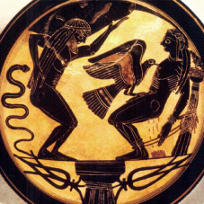
Prometheus bound. Put the mouse over the image.
- As of jQuery v1.7,
.on()and.off()were added to robustly handle attaching and removing event handlers, and.bind()is now an alias to.on()while.unbind()is an alias to.off(). (Event handling is a tricky subject; if you are interested, search the web for historical drawbacks about.bind()and the later-introduced-then-deprecated.live()(removed from jQuery as of v1.9) that got around the drawbacks but had its own problems.) - AJAX
AJAX, Asynchronous JavaScript and XML, is what makes many web apps possible, allowing data to be sent from a server to a web page (and vice versa). A key ability this allows is for part of a page to be updated with new data without having to reload the entire page. jQuery has a set of methods that help deal with AJAX. The following demo loads new content into the box from the server. Although the demo loads an image into the box, AJAX can be used to load all sorts of things, like content resulting from server-side processing of the user's input or a new script for the page. - This demo uses jQuery's
.ajax()method to load the content in the box. When the button is pressed,.ajax()'sbeforeSendsetting is used to display a loading message, which is removed when the content arrives. If the content does not successful download from the server, an error message is displayed instead. - You can do a lot with the
.ajax()method, as it has many options. jQuery also has a set of "shortcut" AJAX methods that focus on specific AJAX tasks, like.getJSON(), which gets JSON-formatted data from the server, or.getScript(), which gets a script from the server and then executes it..load()is another useful helper: it fetches the data and then loads it as HTML data in the chosen selector, so it is like calling$(someSelector).ajax(someAjaxOptions).html(fetchedAjaxData). - JSON
JSON, JavaScript Object Notation, is a language-independent data format (the "JavaScript" part comes from how it originated). JSON is useful because it is lightweight, good for data interchange (any programming language on any OS can read any well-formed JSON if a JSON parser is available), and is readily human-readable. (OK, minimized JSON is not particularly human-readable, but it is easily formatted into legibility.) JSON is very useful for serializing structured data and transmitting it over a network. These days, JSON often used instead of XML for AJAX—this sometimes is called AJAJ (Asynchronous JavaScript and JSON), but this term isn't in widespread use. - jQuery's
.ajax()method of course can handle JSON, and there's a shortcut method,.getJSON(), tailored for JSON. So, let's use it to get some test JSON from my Birdopolis game.
Jason, not JSON - The data retrieved from
.getJSON()is usable as a JavaScript object without need for further parsing. If you got the data as a string by some other means, jQuery's.parseJSON()method can parse it into JSON. .getJSON()has some potential drawbacks: if the data it fetches is not well-formed JSON or if the data does not arrive at all, the method will often silently fail, since it doesn't have a way to handle an error. If there's the slightest chance that either of these will occur, it is better to use the.ajax()method with the data type set to JSON, as you can then provide an error callback. (An alternative is to use jQuery's chaining ability with the.getJSON()call, such as.getJSON().error(). Yet another alternative is to use jQuery'sDeferredobject and its methods with the JSON call.)- Two
eaches to Get Them All
jQuery has two differenteachfeatures that help iteration: the$(someSelector).each()method and the$.each()function. These features provide compact, less-error-prone ways to iterate than building loops by hand. $(someSelector).each()
The$(someSelector).each()method iterates over a jQuery object, running a function each items it matches an element it is looking for. This method only works with a jQuery object and cannot be used to iterate over JavaScript arrays or objects that cannot be found in a jQuery object. Let's use.each()to iterate across the three divisions below and raise a tricolor!1
2
3
Three divisions, numbered 1, 2, and 3.
$.each()
The$.each()function iterates over a "collection," which can be any JavaScript array or object. Let's have$.each()do its thing for an array!var elvenRings = ["Narya", "Nenya", "Vilya"];
Press the Run button to iterate over the array with$.each(elvenRings, callback);
Now let's use$.each()on an object!var dresdenFiles = {"White Court Vampires": "Lara Reith", "Red Court Vampires": "The Red King", "Black Court Vampires": "unknown, perhaps no one", "Jade Court Vampires": "unknown", "Seelie/Summer Court Fae": "Queen Titania", "Unseelie/Winter Court Fae": "Queen Mab", "White Council of Wizards": "Arthur Langtry"}
Press the Run button to iterate over the object with$.each(dresdenFiles, callback);- Mergers & Acquisitions
jQuery's$.extend()function is very useful for combining objects. An existing object (the target object, aka the object being extended) can have the contents of one or more other objects merged into it (the contents of the target object are modified but the contents of the other object[s] are not). Or, the target can be a new object, with the contents of one or more other objects merged into it (the contents of the already-existing object[s] are not modified). - A merger affects the properties of the target object. If the target object does not have a property with the same name as that being merged in, a property of this name is created in the target object, and its value is the value of the property being merged in. For example, if a merging object has a property called
examplewith a value of17and the target object does not have a property of this name, then this property is created in the target and is assigned17. - Things get more interesting when the target already has a property with the same name as a property being merged in. The merger can be shallow (the default) or deep. In a shallow merge, the value of the property being merged will just replace that of the target's property. In a deep merge, same-named properties that contain arrays or objects are recursively merged. Recursive merging occurs only for like types: if the target's property contains an array and the merging property contains an array, for example, then the contents of the arrays are merged. (In this case, the merging array's values at each index replace those of the target.) On the other hand, if the target's property contains an array and the merging property contains an object, the target's array is completely replaced by the merging object.
var birds1 = {
owl: 'Northern Spotted Owl',
sparrow: ['House Sparrow', 'Chipping Sparrow', 'Field Sparrow'],
raptor: 'Red-tailed Hawk'
};

var birds2 = {
gull: 'Ring-billed Gull',
raptor: 'Golden Eagle',
sparrow: ['Song Sparrow', 'Sage Sparrow']
};
Click the Shallow Merge or Deep Merge button.
- In both merges, the
gullproperty ofbirds2was added tobirds1since it did not have such a property, theowlproperty ofbirds1was not modified sincebirds2did not have such a property, and the value of theraptorproperty ofbirds1was replaced by that ofbirds2. - Each object contains a
sparrowproperty. In a shallow merge, thebirds1array was completely replaced by thebirds2array. In a deep merge, the contents of the arrays were merged: the two values of thebirds2array replaced those at the same indices inbirds1. Note that the third value in thebirds1array was retained, since thebirds2array did not have a value at the third index.
Perl and Perl/Tk
- Process Files (Windows) and Process Files (Linux). While at GameFx and Helixe, I ran the THQ Collective, which was a source code resource for all in-house developers at THQ and its studios. The Collective ran on a Linux box using the Apache server, which I administered. The source code files were on a password-protected website with the code completely searchable and the identifiers cross-referenced by hyperlinks. The procedure to process the source code for display involved many steps including file preparation on a Windows 98 PC followed by further processing on a Linux box. I wrote two Perl/Tk scripts that vastly sped up the process. The scripts used Perl for file processing. Since there were numerous possible settings, I used Perl/Tk to create graphical user interfaces that greatly eased setting the options.
- Change Multiple Files from Mac to Windows and Change a Single File from Mac to Windows. When I ran the THQ Collective (see above), I would occasionally get source files in Macintosh format. As you might be aware, Windows, Linux, and Mac all use different ways to mark the end of a line in text files: Windows uses two characters, CR and LF, Linux uses just one, LF, and Mac uses the other one, CR. So, for the Collective, Mac source files had to be converted to Windows line breaks before they could be processed. These two scripts do just that. The multiple file version converts multiple files in a specified directory; a default set of extensions is provided, but the code is easily modified to handle other text file types. The single file version converts one specified file.
- Change Text. So, I had written this massive documentation in multiple HTML files of a C++ library when one day the software engineers decided to rename all the library's identifiers using a different naming convention. 250+ identifiers. 1,000+ mentions of them in the doc. Rather than changing them all by hand, I wrote this Perl script that did it automatically. See the comments in the file for details.
- Scan for Images. The THQ Collective quickly grew to have a lot of files. Being web-based, it was in HTML. It called for a lot of images, which were separate files. As assets changed over time, sometimes the HTML called for an image that wasn't present, while sometimes the images directory contained images taking up disk space that weren't called for in the HTML. I wrote this script to 1) compile the names of all images called for in the HTML files'
imgtags, 2) compile a list of all .gif, .jpg, and .png images in the images directory, and 3) report all instances of missing images or unneeded images. - Update JavaScript. HTML template files in the THQ Collective were used to build the end-user HTML files. Each template had a JavaScript script in the head tag. When it became necessary to update the script, this Perl script was used to update all the templates.
- Check Ownership, Group, and Permissions. The files on the THQ Collective needed a specific set of ownership, group, and permissions settings for the Collective to work correctly. It was time consuming to set these by hand when multiple files were involved, so I wrote this script to be able to set all the files in a directory to a user-specified set of ownership, group, and permissions settings.