3. Basic Game
|
3. Basic Game |
|
On this page: |
Go to: |
If you haven't read The
Screens in the Game in the Introduction yet,
you should do so before reading these rules.
You play Star Trek ConQuest Online in a series of turns. Each turn has a set of phases. You and your opponent simultaneously plot actions for your pieces for each phase. When both of you finish plotting and submit your actions for the phase, they are executed at the same time.
Each ship and person in play can do one action each turn. Actions for a ship are moving, beaming, attacking, and defending. Actions for a person are attacking and defending.
A person or ship can gain an extra action in a turn through the use of an item. If a ship or person has two actions, then it can do two different actions during the turn. Example: a ship with two actions could both move and attack in the same turn. With one exception, a piece with two actions cannot perform the same action twice in the same phase. Example: A person with two actions cannot attack twice. The one exception is that a ship with two actions can both beam and move in the same phase. The beam always happens before the move. So, a ship can beam a person up from a planet and then move to a new region, but it cannot move to a new region and then beam someone up from a planet it that region.
Deploying a piece to the game map does not use that piece’s action for the turn. Once deployed, the piece can perform actions in that same turn.
Action Icons
Whenever you have a piece perform an action, the piece receives an Action icon to remind you that the piece will perform a specific action when your plots are executed. The Action icons are:
|
|
Shows that a piece is being deployed. |
|
|
Shows that a piece is using a special ability. |
|
|
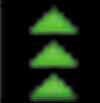
Shows that a ship is moving. |
|
|
Shows that a ship is beaming a person. |
|
|
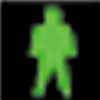
Shows that a person is being beamed. |
|
|
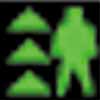
Shows that a ship is both beaming and moving in the same phase. |
|
|
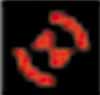
Shows that a piece is attacking. |
|
|
Shows that a piece is defending. |
|
|
Shows that you do not have enough Control Points to deploy the piece from your Control Group. |
The Game Map
Star Trek ConQuest Online can be played on either of two game maps: the Preceptor Nebula and the Elemental Rim. You select a map when setting up to play a game (on the Game Settings screen).
Each game map contains three regions. Each player has his or her Home Region. The region between the players is the Neutral Zone. There are planets in each region. Each player has a Home Planet in his or her own Home Region. The Neutral Zone has one planet on the small map and three planets on the large map. Use the mouse to navigate around the game map.
Ships move from region to region. With a few exceptions, ships can only move one region per turn. (So when you want to move a ship from your Home Region to your opponent’s Home Region, usually it’ll first have to move into the Neutral Zone Region.)
People and Q can only be on planets or ships. To move a person or Q from one planet to another, you have a ship beam the person up from the planet he or she is on. If the planet you want to move to is in a different region, you then move the ship to that region. Finally, you have the ship beam the person or Q down to the new planet. Note that this takes several actions for the ship to do.
There are three views in the game:
System view shows the entire game map on the screen. All regions and planets are visible in this view. On this view, you see which regions the people, Q, and ships in the game are in. You can expand the screen to a Region view by clicking on a region.
Region view show a closeup of a region. On this view, you see which ships are in the region and which people and Q are on planets in the region. You can expand the screen to a Planet view by clicking on a planet.
Planet view shows a closeup of a planet. You see the people and Q show the people and Q on the planet.
Locations on the map are listed at the top left of the Game Map window. You can move to the view of a location by clicking the location’s name in this list. Example: You are in the Neutral Zone’s Region view. Click on Region A to switch to Region A’s Region view.
Each game turn is played in a set of phases. You and your opponent simultaneously plot actions for your pieces for each phase. When both of you finish plotting and submit your actions for the phase, they are executed at the same time. The phase you are in determines the actions you can do.
The Basic Game has three phases in which you do things: Deploy, Attack, and Move. There are also two phases, Start Turn and End Turn, in which you don't actually do anything, but which the game uses for bookkeeping and other behind the scenes tasks.
Start of Turn Phase
In this phase the game calculates how many Control Points each player gains for controlling planets. If a player gains Control Points, then he or she receives them in this phase.
The game also determines if either player’s Q is in Cheq. If your Q is in Cheq, you are notified of this in the Game Reports window.
In this phase you and your opponent deploy pieces from your Control Groups into play. You must have enough Control Points to pay the cost of a piece to deploy. (Your Q starts the game in play, so Q never need to be deployed.)
To deploy a piece, simply right-click it in your Control Group. If the piece is a ship or person, a popup asks you to confirm that you want to deploy the piece. If the piece is an item, in the Game screen you must right-click the ship or person you want to deploy the item on.
There are some restrictions on where you can deploy pieces:
You must deploy ships in your Home Region. When you right-click a ship to deploy it, it automatically deploys to your Home Region.
You must deploy people on your Home Planet. When you right-click a person to deploy it, it automatically deploys on your Home Planet.
You must deploy items on ships or people. The ships or people can be anywhere on the map. Some items can even be deployed on your opponent’s pieces! Simply right-click the person or ship you want to deploy the item on. You can right-click on ships or people in the Game screen or in the Piece Viewer on the left of the Game screen.
You can deploy as many pieces as you like during the Deploy phase, as long as you have the Control Points to pay for them all. When you are done deploying pieces, press the End Phase button to finalize your choices. When you and your opponent both finish plotting your deployments, all pieces are placed on the game map and the game advances to the next phase.
If you plot to deploy pieces but then change your mind, simply click the Cancel All button to cancel all your plots and restart. You can also cancel the deployment of a single piece by right-clicking the piece and selecting Cancel Action from the pop-up list.
At certain times during a game, it can become important to figure out whose pieces are deployed first. Usually this is necessary when both players try to deploy the same unique piece (see the section on Unique Pieces below).
The player with the most Control Points always has his or her pieces deployed first. If both players have the same number of Control Points, the game randomly chooses whose are deployed first. Once the first player’s pieces are deployed, the other player’s pieces are deployed. If any piece the second player plotted to deploy cannot now be deployed (because it is a unique piece and the first player already deployed it), the piece is not deployed and the player does not spend the Control Points for deploying it.
When all pieces are deployed, ships receive special icons to indicate they have crew (people on board) or items, and people receive special icons to indicate they have items. These icons are visible on the pieces in the Game Map. The icons may have numbers underneath them indicating that more than one crew or item is present.
|
|
This icon indicates the ship has a person on board. |
|
|
This icon indicates the person or ship has an item. |
The System view uses icons and numbers to show the locations of your and your opponent’s pieces. You pieces are blue and your opponent’s red. Numbers beneath the icons indicate how many pieces of that type are at a location. To see what the pieces specifically are, go to the smaller Region or Planet views.
|
|
Friendly (blue) and enemy (red) person icons seen in the System and Region views. |
 |
|
|
Friendly (blue) and enemy (red) ship icons seen in the System view. |
 |
During the Attack phase you can attack enemy pieces, and your opponent can attack your pieces. Ships and people can make attacks:
Ships in a region can attack enemy ships that are in the same region. (They cannot attack ships in other regions, and they cannot attack people.)
People on a planet can attack enemy people that are on the same planet. (They cannot attack people on other planets or on ships, and they cannot attack ships.)
You attack enemy pieces in an attempt to remove them from the game. Whenever one of your pieces attacks, it inflicts damage on the enemy piece equal to its Combat attribute. This damage is subtracted from the enemy’s Hit Points (if it’s a person) or Shields (if it’s a ship). If the enemy piece has its Hit Points or Shields reduced to zero or less, the piece is removed from the game.
Most pieces have variable Combat attributes. For example, the Klingon Lieutenant piece has a Combat attribute of 2-4. This piece randomly inflicts two to four points of damage when it attacks. This random number is generated by the game when the attack is resolved.
Plotting Attacks in the Attack Phase
To order one of your pieces attack an enemy piece, first right-click it. Then right-click the enemy piece you wish to attack, and your attack is plotted. As a designator a line is drawn from your piece to the target piece. You can attack the same enemy piece with as many pieces that can target it as you want.
Plot all your attacks during the Attack phase—you can plot attacks in multiple regions and on multiple planets. Once all your attacks are plotted, click the End Phase button to commit to the attacks. f you wish to change any plotted attacks before you click End Phase, right-click the attacking piece you want to change and select Cancel Attack from the pop-up menu. You can then plot a new attack for the piece. If you wish to cancel all attacks you have plotted so far, click the Cancel All button. This cancels all attacks and allows you to restart plotting attacks.
Attacks are not made simultaneously. All of one player’s pieces always attack before the other player’s.
It is often important to know whose ships or people attack first. For example, player A’s piece is attacking player B’s piece, and B’s piece is attacking A’s. Whichever one attacks first may remove the other one from play, thus preventing the removed piece from attacking.
The pieces of the player who has the most Control Points at the time of the attack always attack first. When all of the pieces of the player with the most Control Points are done attacking, the other player’s pieces then attack. Damage inflicted by the pieces of the player with most Control Points occurs before the other player’s pieces conduct their attacks. This means it is possible for pieces to be removed from the game before they get a chance to attack.
The one exception to the above rule (on who attacks first) is for pieces that have the special ability of Attack Priority. If a piece has Attack Priority, it always attacks before all other pieces, even if the opponent has more Control Points. If both players have pieces with Attack Priority, Attack Priority pieces of the player with the most Control Points attack first, followed by Attack Priority pieces of the other player. After all pieces with Attack Priority have attacked, all other pieces attack (in Control Point order as described above).
When several pieces attack the same enemy piece, Attack Priority is used only if all pieces attacking the enemy piece have Attack Priority. If pieces with Attack Priority attack an enemy piece in conjunction with any other friendly pieces that do not have Attack Priority, the Attack Priority pieces lose their Attack Priority status. Example: You plot three pieces to attack the same enemy piece. Two of your attack pieces have Attack Priority but the third one does not. Thus, the attack is not made with Attack Priority.
Once both players have submitted their attacks, if a player has pieces that can defend then that player enters the Defense sub-phase. A piece can defend if it can do an action and is in the location of an enemy attack. The owning player can spend the piece's action and have it defend against an attack at that location. The piece does not have to be the target of an attack to be able to defend; it just has to be present at a location at which enemy pieces are attacking. Example: You have two people on the same planet, and the enemy has one person there, which is attacking one of your pieces. You did not plot either of them to attack and thus they both can perform actions. During the Defense sub-phase, you can spend both pieces’ actions and have both defend against the attack (even though only one is being attacked).
When you order pieces to defend, you assign them to defend against an attack at that location. A defending piece can fire back and inflict damage to the attacker. Also, you can assign damage inflicted by the enemy in the attack to any of the pieces defending against the attack—even if the piece is not the original target of the enemy attack. This is useful when trying to keep an important piece in the game. Assign less important pieces to defend the important piece, and have the less important pieces soak up the damage.
Ships can only defend against attacks made by ships. People can only defend against attacks made by people.
A piece that is the target of an attack does not automatically defend against that attack: the owning player must assign the piece to defend. If the piece doesn’t have an action remaining, then the piece cannot defend.
To assign a piece to defend, first right-click the piece you want to defend. Then right-click the attacker or group of attackers you want the piece to defend against. You can assign as many defenders as you like against a single attack.
Plot all your defenders during the Defense sub-phase. Once all your defenders are plotted, click the End Phase button to commit to the defense assignments. f you wish to change any plotted defend action before you press End Phase, right- click the defending piece you want to change and select Cancel Defense from the pop-up menu. You can then plot a new defend action for the piece. If you wish to cancel all defend actions you have plotted so far, click the Cancel All button. This cancels all defend actions and allows you to restart plotting defenders.
Combat damages pieces. If there's no choice as to what gets damaged (such as if you only have one piece involved in the combat), the game automatically inflicts damage on the affected piece. If there is a choice of which of your pieces gets damaged, you enter the Damage Assignment sub-phase.
In this sub-phase, you assign damage to your own pieces involved in an attack or defense. The screen displays a list of the amounts of damage inflicted by your opponent on your pieces. To assign damage to a piece, right-click a damage amount. On the right side of the screen appears all pieces to which you can assign that damage amount. Assign the damage amount by right-clicking the piece you want to take the damage.
A piece’s Shields or Hit Points are shown with the name of the piece. When you assign damage to the piece, the Shields or Hit Points are reduced. You can assign a damage amount that exceeds the current Shields or Hit Points of a piece. Example: You can assigned an eight damage amount to a person who currently has three Hit Points. When you assign the damage amount, the piece's Shields or Hit Points are reduced by that amount (or to zero if the damage exceeds the piece's Shields or Hit Points strength).
You can assign more than one damage amount to the same piece. However, you cannot assign a damage amount to a piece that currently has zero Shields or Hit Points. Example: You have two ships, A and B, each with five Shields, and the enemy has inflicted three damage amounts in the combat: a two, a four, and another four. You assign a four damage amount to ship A, leaving it with one Shields. You then assign the other four damage amount to ship A, leaving it with zero Shields. You cannot assign any more damage to Ship A, so the two damage amount must go to ship B.
You can cancel a damage amount assignment you made to a piece by right-clicking the assigned damage amount (they are shown graphically next to the piece to which they are assigned) and selecting Cancel Damage from the pop-up menu. This returns the damage amount to the left side of the screen, ready to be reassigned.
You continue assigning damage amounts to pieces until all damage amounts have been assigned or until all your pieces have been reduced to zero Shields or Hit Points. When you are done assigning damage amounts, click the Done button to move onto the next phase.
When the Damage Assignment sub-phase ends, all pieces that have been reduced to zero Shields or Hit Points are removed from the game.
Any piece that takes damage during the Attack phase receives a “hit” graphic for the remainder of the turn. Any piece that has lost 50% or more of its Shields/Hit Points receives a “damaged” graphic for as long as it remains at 50% or more damage.
During this phase, players move their ships and use their ships to beam their people and Q. Only ships are able to move or beam. Moving and Beaming each are actions; a ship that does not have an action left cannot move or beam.
To move a ship, right-click the ship and then right-click the region you want it to move to. You can click the region in the System view or the Region view. You can also click the name of the region in the location list on the left side of the Game Map.
Generally, a ship can only move to a region adjacent to the one it currently is in. Some ships, however, may have or acquire the ability to move more than one region. When you move such a ship, just right-click the final destination region. There is no need to click the intervening region.
Ships can beam people and Q up from planets, down to planets, or to other friendly ships. People or Q beamed up from a planet or from one ship to another become part of the crew of the ships they beam to. You can view the crew of a ship by viewing the ship in the Piece Viewer and then clicking the Crew tab.
Ships can beam multiple people and/or Q to the same planet, from the same planet, or to the same ship using only one beaming action. Ships cannot beam people or Q to or from multiple planets and/or ships in the same Move phase.
To beam a person or Q from a planet to a ship, right click the person or Q in the Planet view. A window opens and displays all friendly ships the piece can be beamed to. Right-click the ship you want to beam the piece to. The beam is now plotted. You can repeat this process if you want to beam more people on that planet to the ship. Remember, even though you are clicking on the person or Q to initiate the beam, you are using the action of the ship that does the beaming. Repeat this process if you want to beam more people or Q from the planet to the ship.
To beam a person or Q from a ship to a planet in the ship's region, right click the person or Q in the ship’s crew listing. Then right-click the planet you want to beam the piece to. You can right-click the planet in the Region view or the Planet view. The beam is now plotted. Repeat this process if you want to beam more people or Q to the planet from the ship.
Beaming a person or Q from a ship to another ship in the first ship's region is similar to beaming from a ship to a planet. Instead of right-clicking a planet, however, click on the ship you want to beam. Beaming from one ship to another ship uses the action of the ship where the people originated, not the ship where the people or Q end up.
If a ship has two actions, it can both beam and move in the same Move phase. All beams are done before any movement. This means that a ship can beam someone and then move, but it cannot move and then beam.
Canceling and Finishing Beams and Moves
You can cancel a ship’s plotted move by right-clicking the ship and selecting Cancel Move from the popup menu. You can cancel a plotted beam by right-clicking the person or Q being beamed and selecting Cancel Beam from the popup menu. You can cancel all plotted Beams and Moves by clicking the Cancel All button. This cancels all plots and allows you to restart plotting your beams and moves.
When you are done plotting your beams and moves, click the End Phase button to submit your plots. When both players have clicked End Phase, the moves and beams are done and the game moves to the next phase.
The pieces of the player with the most Control Points are always moved and beamed first. This can be important at times, such as when you have a piece that prevents enemy pieces from moving to its location. If that piece moves first to a new location, then any plotted enemy moves to that location would be canceled.
End of Turn Phase
You don’t actually perform any actions during this phase. The game uses this phase to do bookkeeping:
Some piece effects end at this time.
Q Points a player gains from control of planets are gained at this time (Advanced Game only).
The game checks to see if any player has met the victory conditions.
To win the game, a player must either get the opponent’s Q into Cheqmate or have control of the most planets on Turn 20.
A Q is Cheqmated if both of the following conditions are met:
At the start of the Deploy phase, the Q is on a planet he or she does not control (this is called being in Cheq).
At the end of the Move phase of the same turn, the Q is on a planet he or she does not control.
If both conditions are met, the Q is Cheqmated and the opposing player has won the game.
It is possible for both players to get Cheqmated at the same time. If this happens, the game is a tie.
If no Q has been Cheqmated by Turn 20, then the player who controls the most planets wins the game. If both players control the same number of planets at the end of Turn 20, then the player with the most Control Points wins the game. If both players have the same amount of Control Points, then the game is a tie.
Click on a piece in the game or in the My Pieces screen to see its description, which appears just below the piece’s picture. The description covers any game effects the piece has.
Piece Affiliations
The first word in the description is the piece affiliation, which indicates the race or group the piece belongs to. Examples of affiliations are Klingon, Federation, Borg, and Alien.
Some pieces only affect a certain affiliation. Some pieces have additional effects on certain affiliations. The Bat'leth item piece, for example, can only be used by Klingons.
Piece Skills
Some pieces may have skills. These skills are listed in the line of text that contains the piece affiliation. Some pieces have differing effects depending on circumstances, such as the ability of the piece they target. Examples of skills are Medical, Pilot, and Command.
Some pieces are marked as “unique.” This is listed in the same line with affiliations and skills. Only one copy of a unique piece can be in play. Example: If one player has a Jean-Luc Picard unique piece in play, neither player can put another one into play until the original piece has been removed from play.
You can have any number of copies of the same unique piece in your Control and Auction Groups (except for the general rule that you cannot have more than three copies of a single piece in your Control Group).
Priority
Some pieces in the game have a priority ability, as indicated in the piece description in the Piece Viewer. Priority is always paired with a type of action, such as Move Priority or Attack Priority. Priority means that your piece performs its indicated action before your opponent’s pieces, even if your opponent has more Control Points than you. Example: Your piece with Attack Priority always attack first, regardless of the Control Points your opponent has.
If you have a piece with priority, and your opponent has a piece with the same priority, the priority pieces of the player with the most Control Points go first, followed by the priority pieces of the other player (then followed by the non-priority pieces of the player with the most Control Points, and finally followed by the non-priority pieces of the other player).
Go to:
Top of this page
Help
System Home Page
Previous chapter:
2. Pieces
Next chapter:
4. Advanced Game